Create Account
1. On the top menu, click

to view the Account details screen. Refer to the following screen.
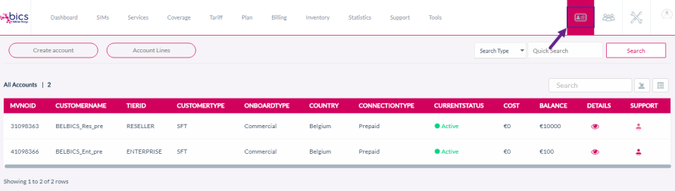
2. Click Create Account to create an account under the Reseller. Refer to the following screen.
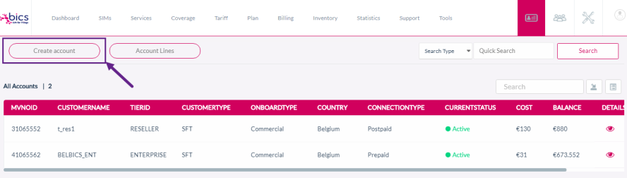
3. After clicking the button, the Create Account screen is displayed.
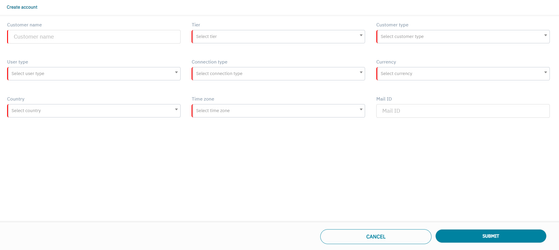
4. To create an OEM Model Enabled Reseller/Enterprise account, select the tier type as reseller/enterprise and OEM Model Enable/disable switch will appear, enable it. Refer to the following screen.
By default, OEM Model button will be disabled.
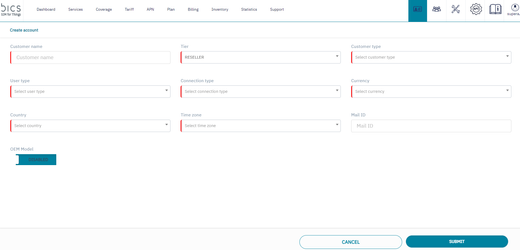
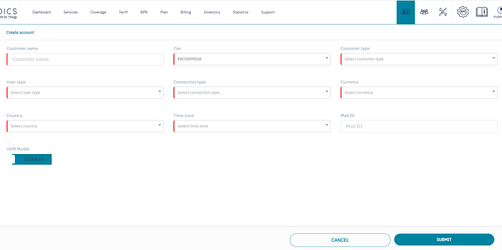
5. Enter or select the following information in the corresponding fields.
|
Field |
Description |
|
Customer Name |
Enter the name of the customer. |
|
Tier ID |
Select the Tier ID in the drop-down list. For example, Reseller or Enterprise |
|
Customer Type |
Select the Tier ID in the drop-down list. For example, SFT |
|
User type |
Select the user type in the drop-down list. For example, Trial or Commercial |
|
Connection Type |
Select the connection type in the drop-down list. For example Postpaid or Prepaid |
|
Currency |
Select the currency for the account. For example, EUR |
|
Country |
Indicates the country for the account. For example, Belgium |
|
Time zone |
Select the time zone for the account |
|
Mail ID |
Enter the mail id for the account |
|
OEM Model toggle button 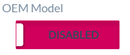
|
For Tier type as Reseller, Enterprise OEM Model switch will appear.
|
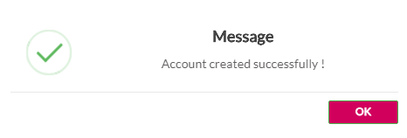
6. After entering the details, click Submit.
A confirmation message is displayed indicating Account is created successfully.
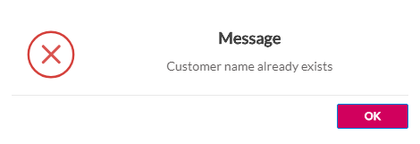
If the account name already exists, the following error message is displayed.
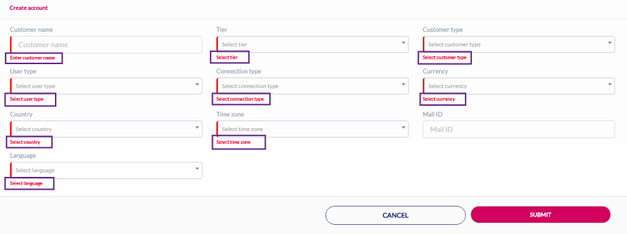
If you click Submit without entering the mandatory details, the following notification is displayed below the mandatory fields