Enable OEM on Reseller/Enterprise Account
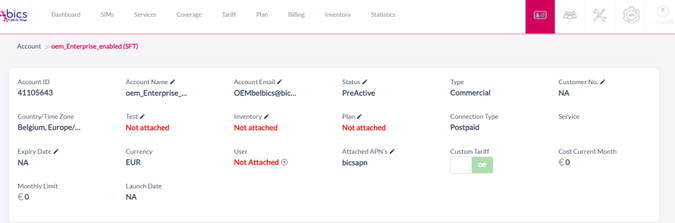
To configure plans and create user for OEM enabled reseller/enterprises click on the

view icon from the accounts screen. After clicking the button following screen appears.
-
Test and Inventory plans fields will be mandatory for OEM enabled reseller/enterprise accounts.
-
For OEM disabled reseller/enterprise accounts test and inventory plan select box will not be displayed.
2. Click on the

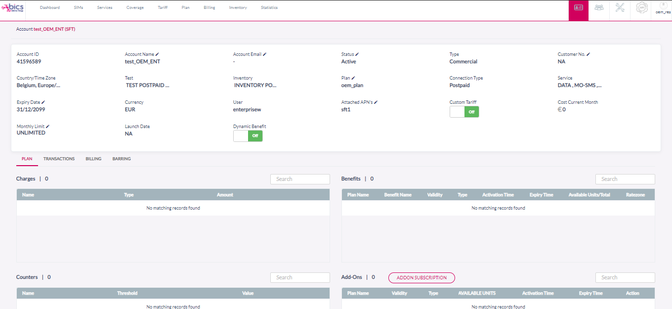
edit button to configure the test, inventory and base plans for the OEM enabled reseller/enterprise account.
-
Test plan and Inventory plan selection will happen based on currency that is attached during the reseller/enterprise account creation.
-
Once all three plans attached click on the user to create reseller/enterprise user.
-
After attaching base plan to the reseller/enterprise account new default roaming profile, test coverage(reseller), test default roaming profile(Enterprise), base service profile, default postpaid and prepaid base, test, and inventory plans will be created.
-
In reseller's account auto created OEM plans, OEM Test coverage naming convention will be as per below.
-- TEST POSTPAID PLAN – {name of the plan given by BICS}
-- TEST PREEPAID PLAN – {name of the plan given by BICS}
-- INVENTORY POSTPAID PLAN – {name of the plan given by BICS}
-- INVENTORY PREPAID PLAN – {name of the plan given by BICS}
-- TEST – {name of the plan given by BICS}
In enterprise's account auto created OEM plans, OEM Test default roaming profile naming convention will be as per below.
-- TEST POSTPAID PLAN
-- TEST PREEPAID PLAN
-- INVENTORY POSTPAID PLAN
-- INVENTORY PREPAID PLAN
-- TEST
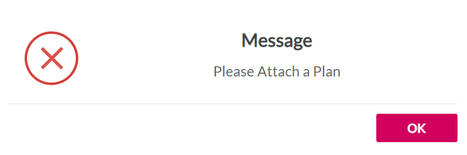
3. While attaching plans for OEM enabled reseller/enterprise account first attach test plan then inventory and at last base plan if not following warning messages will popup. Refer to the following screen.
Without attaching test plan if inventory plan edit button is clicked then following warning message displayed.
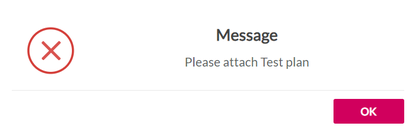
Without attaching test or inventory plan if base plan edit button is clicked then following warning message displayed.
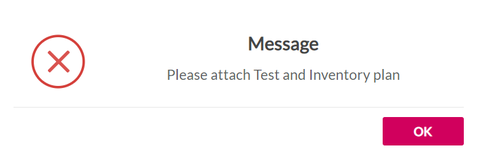
Without attaching all three plans if click on create user in the CRM then following warning message displayed.