
Endpoint Events
The customer should be able to see all the Endpoint level events on the portal. Last 6 months Endpoint Events will be available in this screen.
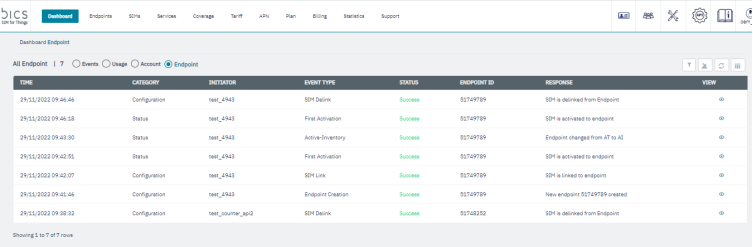
1. Click Endpoint to view the Account activities report. Refer to the following screen.
2. The Account tab lists the all Event logs under the Enterprise. Refer to the following screen.
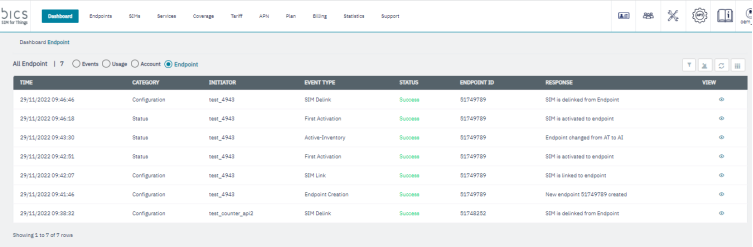
The following transaction details are displayed on the screen.
|
Field |
Description |
|---|---|
|
Time |
Indicates the date and time when the callback API event took place. Time is displayed in UTC standards |
|
Category |
Indicates the type of category event . For example Customer CRM |
|
Initiator |
Indicates the account from where the events initiated. |
|
Event Type |
Indicates the Event Type of the events .
|
|
Status |
Indicates the status of the callback API. |
|
Endpoint ID |
Indicates the Endpoint ID of the events. |
|
Response |
Indicates the HTTP Response of the events. |
|
View |
Details of the events. |
Note: We are writing Endpoint events for Endpoint provisioning, Plan change, MDB activation, MDB deactivation, Add subscription, Addon deactivation, service profile modification, coverage modify, Counter update, Balance update, Bulk provision, endpoint modify and imei lock and unlock.
3. Event detailed view
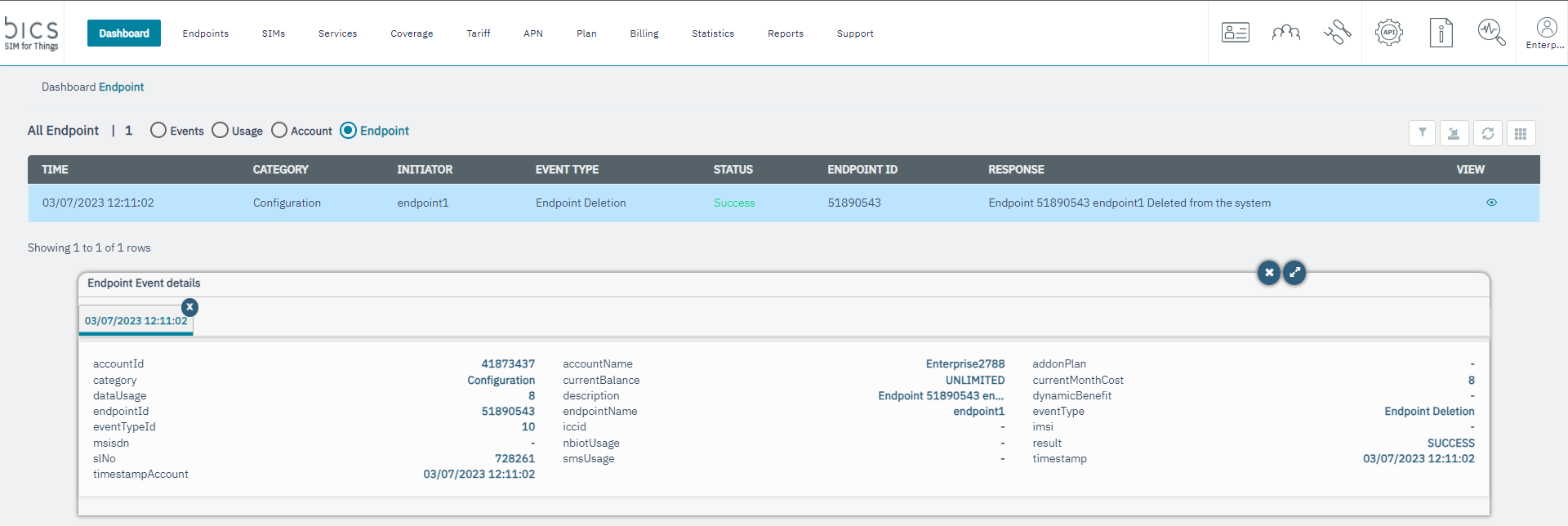
The following transaction details are displayed on the screen.
|
Field |
Description |
|---|---|
|
Endpoint ID |
Indicates the Endpoint ID |
|
Endpoint Name |
Indicates the Endpoint name |
|
Deletion Date & Time |
Indicates the date and time when the account deleted |
|
Status |
Indicates the Endpoint deleted status successful or failed? |
|
Plan assigned |
Indicates the assigned plan |
|
Total Data Usage Current Month |
Indicates the total data usage current month |
|
NB-IoT Usage Current Month |
Indicates the current month NB-IoT usage |
|
SMS Usage Current Month |
Indicates the current month SMS usage |
|
Cost Current Month |
Indicates the cost current month value |
|
Monthly Limit/Balance |
Indicates the Monthly Limit/Balance |
|
Prepaid or Postpaid |
Indicates the Endpoint Prepaid or Postpaid |
|
MDB Configuration |
Configured MDB name |
|
Addon Configuration |
Configured Addon name |
Advanced search
After clicking the Filter button the following screen is displayed.
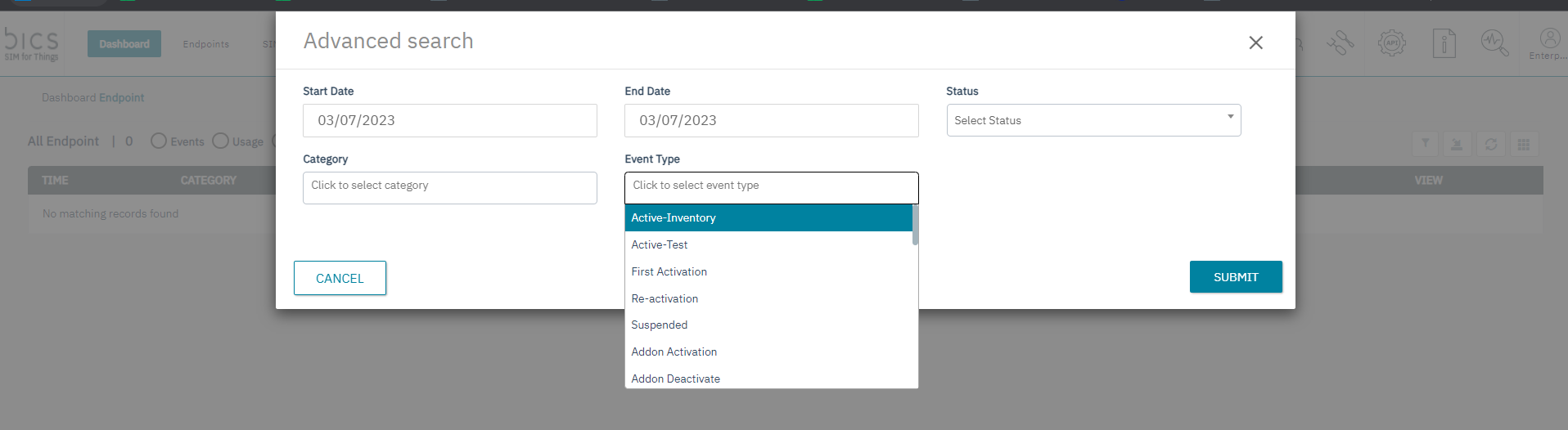
The following details are displayed on the screen.
|
Field |
Description |
|---|---|
|
Start Date |
Indicates the start date . |
|
End Date |
Indicates the end date |
|
Status |
Indicates the status of events . |
|
Category |
Indicates the type of category event . For example Customer CRM |
|
Event Type |
Indicates the Event Type of the events .
|