
1. On the top menu, click Coverage to view the Destination group details. Refer to the following screen.
2. On the Destination Group screen, click Create New Destination. Refer to the following screen.
3. After clicking the button, the Create Destination Group screen is displayed.
Note: The operators available under reseller's current plan are displayed in the Create Destination Group screen.
4. Enter or select the following information in the corresponding fields.
|
Field |
Description |
|---|---|
|
Destination Group Name |
Enter a name for the Destination Group.
|
-
You can filter the operator details pertaining to a specific country using the Select Country drop-down list. For example, select Belgium to view the operators available for Belgium.
-
You can filter a specific operator using the Select Operator drop-down list. For example, select Belgium Proximus to view that particular operator.
-
You can filter the operator details for a specific Network in the Select Network Type drop-down list. For example, select 2G to view the operators available for 2G Network.
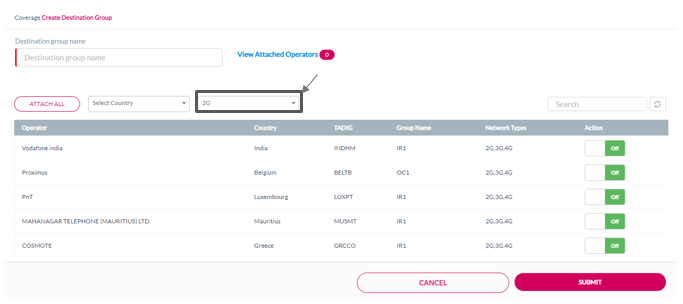
5. Push the Action button to Attach or Detach an operator to the Destination group. Refer to the following screen
6. Click AttachAll to attach all the listed operators to the Destination Group. Refer to the following screen.
-
Click DetachAll to detach all the listed operators from the Destination Group. Refer to the following screen
-
On the Create Destination Group screen, click View Attached Operators to view the operators attached to the Destination Group.
7. Click Submit. A confirmation message is displayed, indicating that the Destination Group is created successfully.
-
If you click Submit without entering the Destination Group name, the following message is displayed.
-
If you click Submit without attaching operator to the Destination Group, the following error message is displayed.
View Attached Operator
-
On the Create Destination Group screen, click View Attached Operators to view the details of the operators attached to the Destination Group. Refer to the following screen.
-
After clicking the button, the List of Attached Operators screen is displayed.
-
Push the Action button to Attach or Detach an operator. Refer to the following screen.
-
To detach all the listed operators from the Destination Group, click Detach All. Refer to the following screen.