-
On the top menu, click Coverage to view the Destination group details. Refer to the following screen.
2. On the Destination Group screen, click
to modify the Destination group details. Refer to the following screen.
3. After clicking the button, the following screen is displayed.
Note: Barring/Unbarring and Delete featured are not available if the Destination Group contains only one Operator.
Add or Remove Operator
-
Adding operators to the destination group will be automatically get added to all DEFAULT roaming profiles derived from it that are attached to the enterprises direct under reseller. All CUSTOM roaming profiles will remain unchanged.
-
Click Add Operator to add or remove operator to a Destination group. Refer to the following screen.
-
After clicking the button, the following screen is displayed.
-
Push the action button against the operator to Attach or Detach the operator to the Destination group. Refer to the following screen.
4. Click Submit. A confirmation message is displayed, indicating that the Destination Group is modified successfully.
Bar or Unbar Operator
-
On the Operators list screen, select the required operator. Refer to the following screen.
-
Click Barring/Unbarring to perform the corresponding action. Refer to the following screen.
-
If you receive, "Alert Are you sure want to continue.?" message, click Yes to confirm the action or click No to discard the action.
-
After clicking Yes, a confirmation message is displayed indicating the operator is Barred or Unbarred successfully.
Barring a network of the destination group even if it results in an empty destination group or roaming profile below
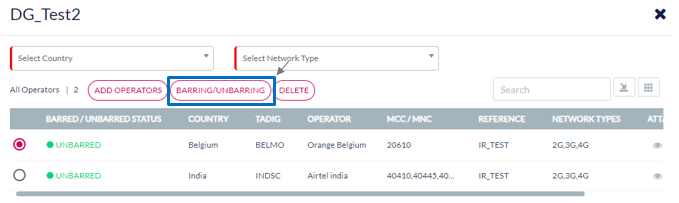
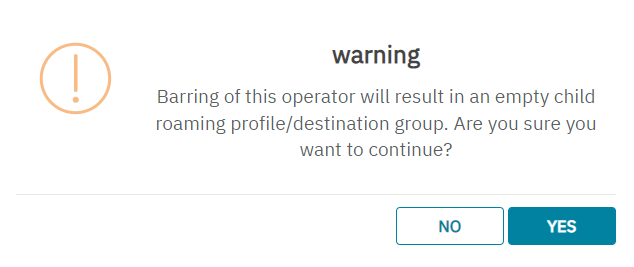
The system will allow barring of a network from the destination group that results in an empty destination group or roaming profile in the down hierarchy by providing a warning to the user and asking for confirmation before executing the change when triggered from the GUI.
-
Click Barring/Unbarring to perform the corresponding action. Refer to the following screen
-
The user receives, Alert "Are you sure want to continue.?" message, click Yes to confirm the action or click No to discard the action

-
After clicking Yes, a warning message is displayed indicating the action results in an empty destination group or roaming profile in the down hierarchy, click Yes to confirm the action or click No to rollback the action.
-
After clicking Yes, a confirmation message is displayed indicating the operator is Barred or Unbarred successfully.

Delete Operator
-
On the Operators list screen, select the required operator. Refer to the following screen.
-
Click Delete to perform the corresponding action. Refer to the following screen.
-
If you receive, "Alert Are you sure want to continue.?" message, click Yes to confirm the action or click No to discard the action.
-
After clicking Yes, a confirmation message is displayed indicating the operator is Barred or Unbarred successfully.
Note: Barred operators cannot be deleted.
-
If you try to delete a barred operator, the following message is displayed
Deleting a network of the destination group even if it results in an empty destination group or roaming profile below
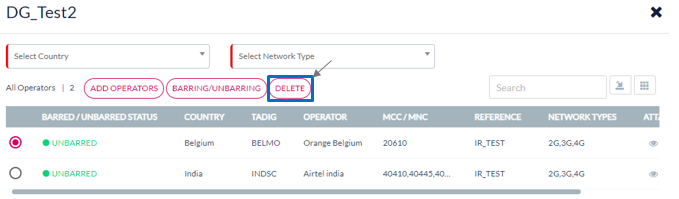
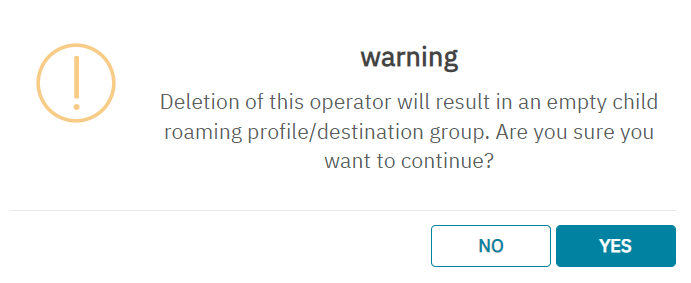
The system will allow deletion of a network from the destination group that results in an empty destination group or roaming profile in the down hierarchy by providing a warning to the user and asking for confirmation before executing the change when triggered from the GUI.
-
Click Delete to perform the corresponding action. Refer to the following screen.
-
The user receives, Alert "Are you sure want to continue.?" message, click Yes to confirm the action or click No to discard the action
-
After clicking Yes, a warning message is displayed indicating the action results in an empty destination group or roaming profile in the down hierarchy, click Yes to confirm the action or click No to rollback the action.
-
After clicking Yes, a confirmation message is displayed indicating the operator is Barred or Unbarred successfully.