
Create Bulk Provisioning
-
On the top menu, click
to view the settings menu. Refer to the following screen.
2. On the Settings screen, click Bulk Provisioning to view the Bulk Provisioning details. Refer to the following screen.
3. On the Bulk Provisioning screen, click Create Bulk Provisioning. Refer to the following screen.
4. After clicking the button, the Create Bulk Provisioning screen is displayed.
5. The value added feature field will be available for activation for which a “feature based SIM management” fee is configured in the plan assigned to the enterprise.
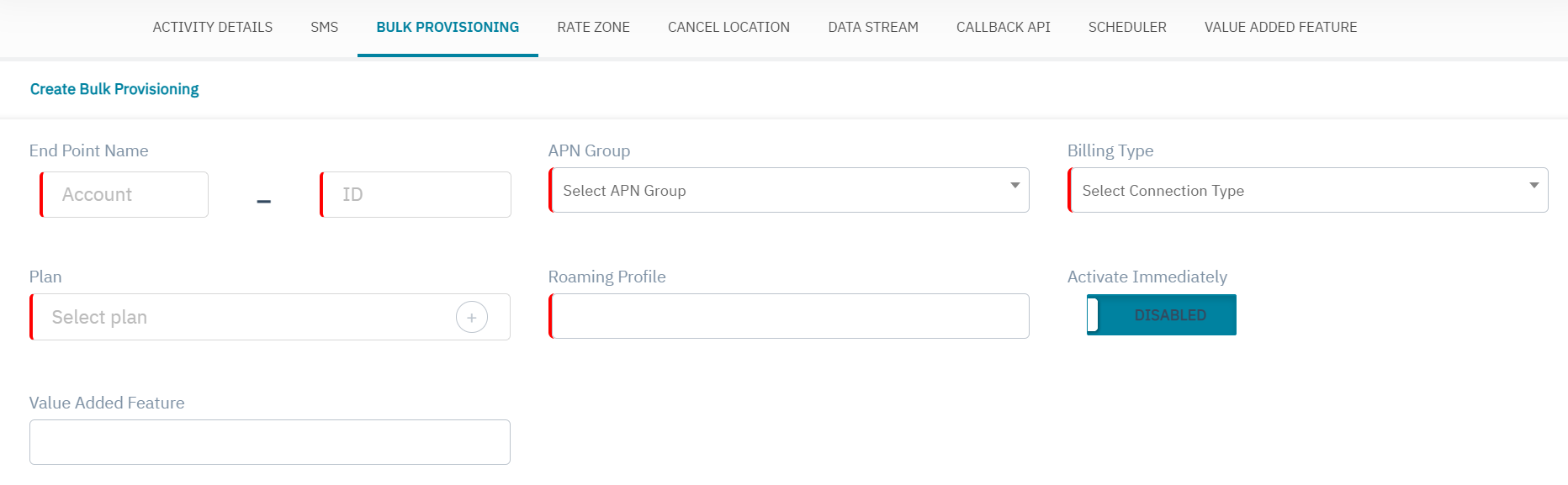
6. Enter or select the following details in the corresponding fields.
|
Field |
Description |
|---|---|
|
Endpoint Name |
Enter the endpoint account name and account ID.
|
|
APN group |
Select the APN group for the endpoint in the drop-down list. APN group available for the Enterprise are displayed |
|
Billing Type |
Select the connection type for the endpoint in the drop-down list. For example Postpaid or Prepaid |
|
Plan |
to attach the plan for the endpoint.
Note: Plans are listed based on the billing type selected and the currency selected by the endpoint. For example, if you select Billing type as "Prepaid," and currency as "EUR", prepaid plans with currency as "EUR" are displayed. 10. Select the required plan.
|
|
Roaming Profile |
Select the Roaming profile for the endpoint in the drop-down list. Roaming profiles available under the endpoint user are displayed. |
|
Dynamic Benefit |
This field is displayed only if Dynamic Benefit is enabled for Enterprise and this will be in ON state.
Note: A monthly recurring fee and SIM management fee is collected from the enterprise when dynamic benefit is enabled.
|
|
Benefits |
This field is displayed only if Dynamic Benefit is enabled for Enterprise.
|
|
Active Immediately |
Endpoints will be active if "Activate Immediately" is enabled
|
|
ICCID's |
Select the ICCIDs based on the number of endpoints to be created.
|
|
Addon Plan |
By default, the Addon field is not displayed. This field is displayed only if Activate Immediately in enabled.
Note: Addon plan is a non-mandatory field.
|
|
Value added feature |
If an enterprise have feature based SIM management fee charge configured in it’s base plan, then Value added feature feild will be visible in the create endpoint screen. 
Adding a value added feature can be done with or without linking a SIM to the endpoint and/or activating the endpoint. |
7. Click Submit to create a new bulk provisioning request.
A confirmation message is displayed, indicating the bulk provisioning request is sent for processing successfully.
-
If you click Submit, without entering the Provisioning details, the following notification is displayed below the empty fields on the Create Bulk Provisioning screen.
9. If you click Submit, with the number of endpoints to create more than the available ICCIDs, the following error message is displayed.