Create Tags
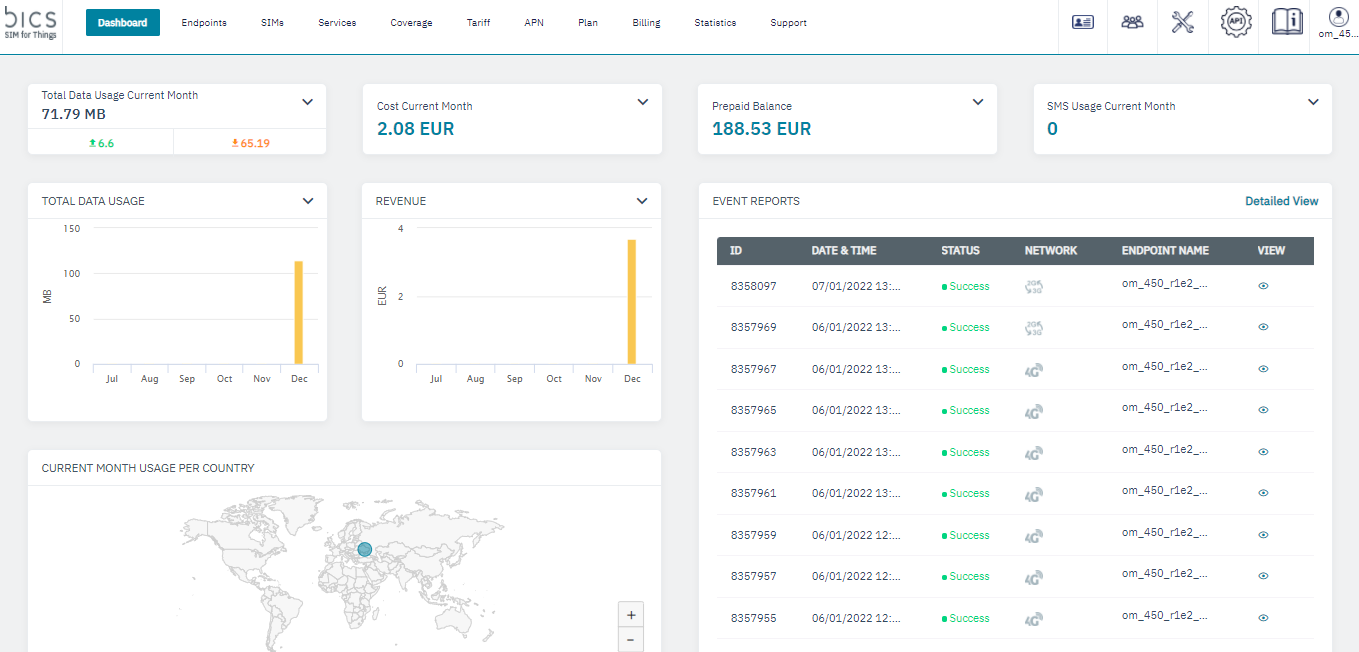
1. After a successful login, the enterprise dashboard is displayed.
2. On the top menu, click

to view the settings menu. Refer to the following screen.
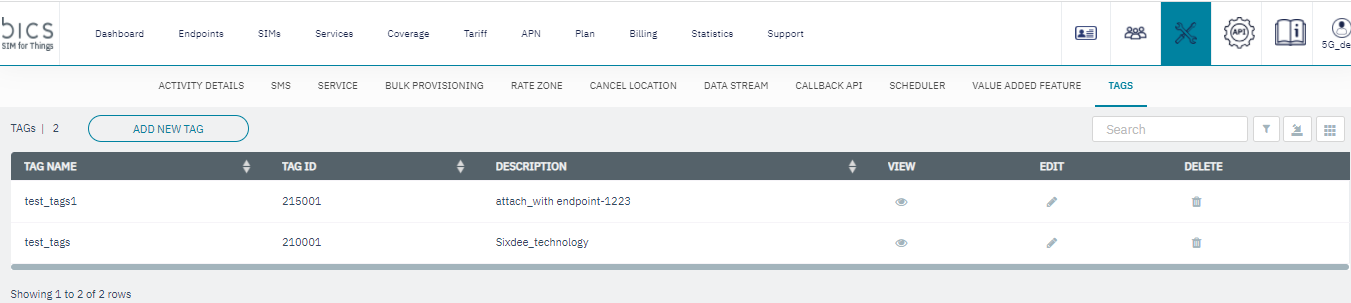
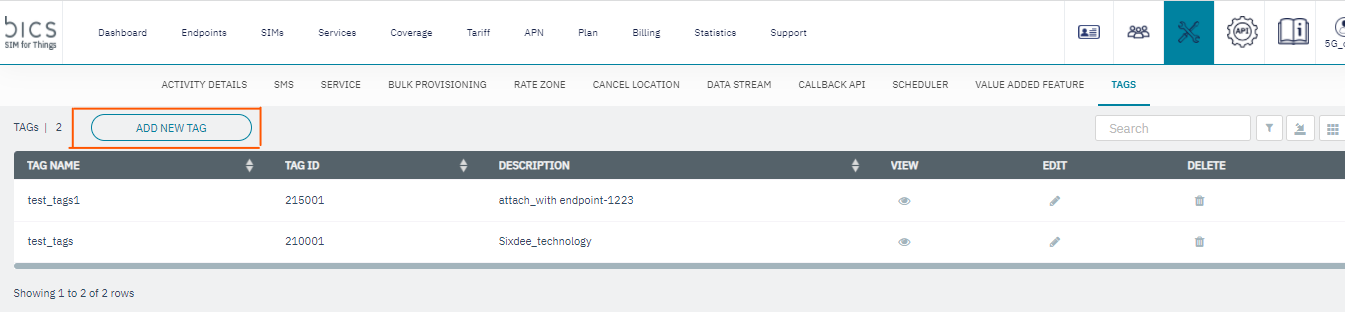
3. Click Add New Tags to create a tags . Refer to the following screen.
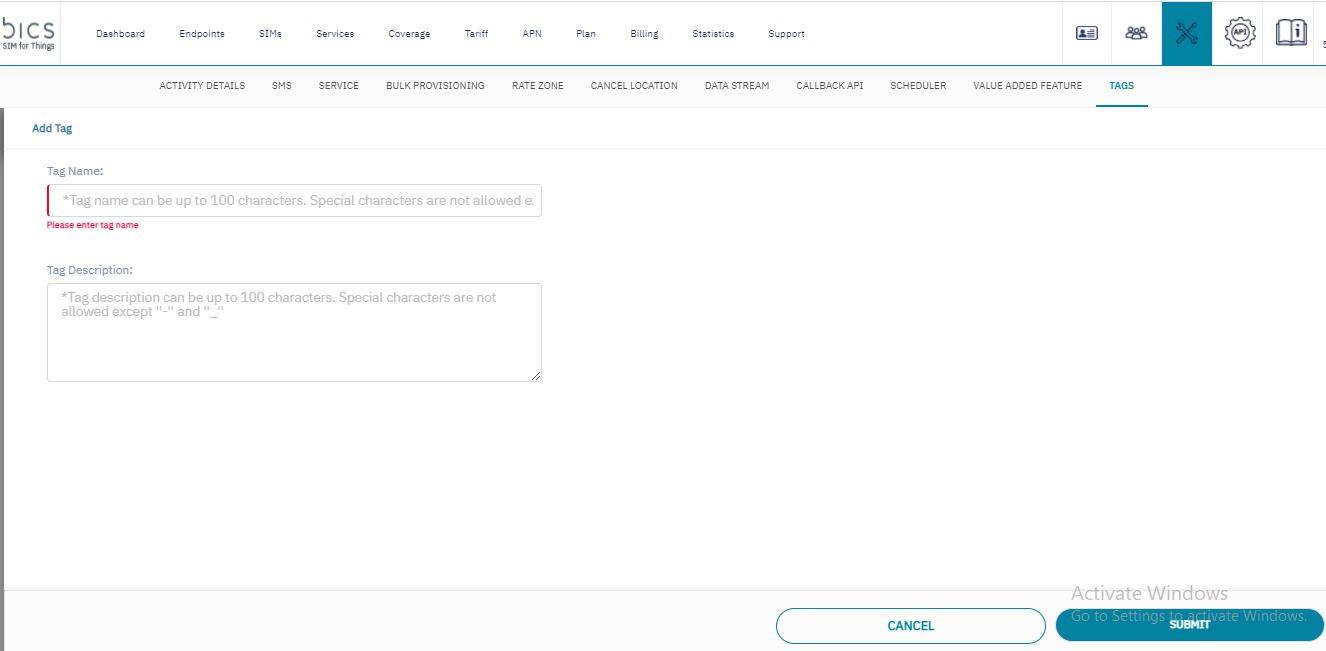
4. After clicking the button, the Add New Tags screen is displayed
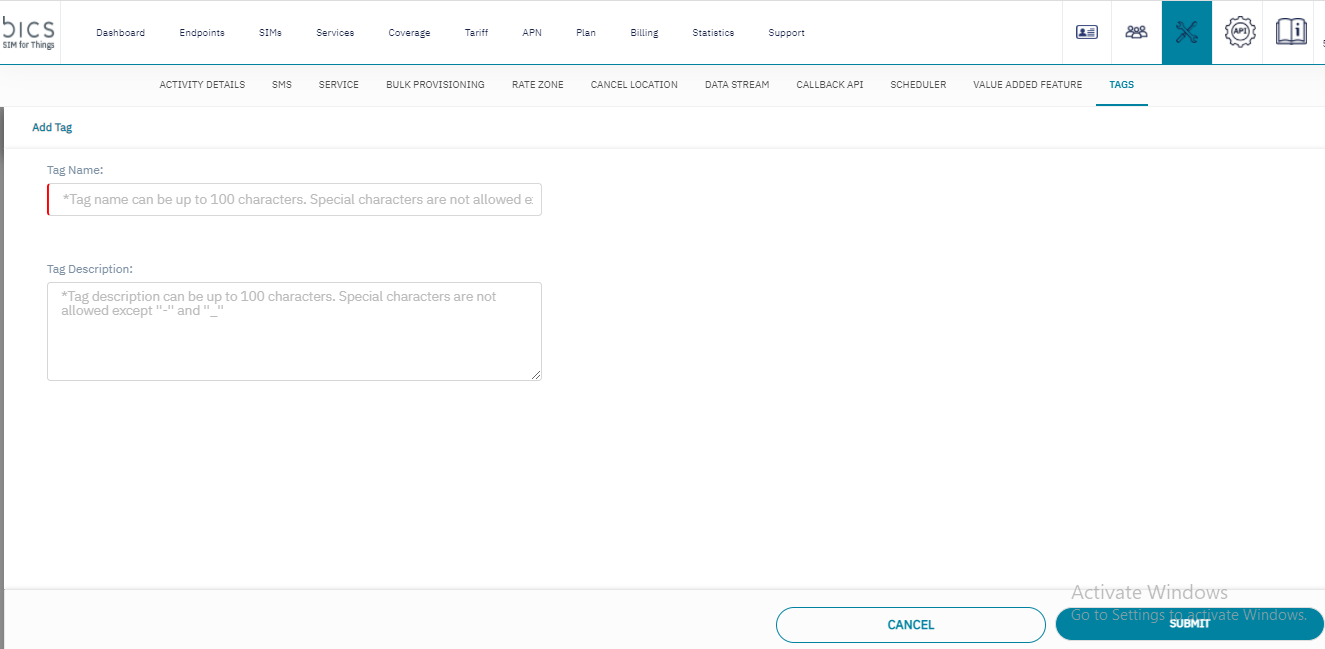
Enter or select the following details in the corresponding fields. Fields marked with "|" are mandatory
|
Field |
Description |
|---|---|
|
Tag Name |
This will indicate the name of the Endpoint Tags. Note:- in Tag Name we can maximum 100 characters and special characters not allowed except hyphen “-“ and underscore “_“. |
|
Description |
Here, the user will describe the Endpoint Tags. Note:- in Description we can maximum 100 characters and special characters not allowed except hyphen “-“ and underscore “_“. |
TAG name should be unique per account Multiple accounts can have same tag names.
Maximum number of TAGs that a user can define would be 20 in a Account.
After entering the details, click Submit.
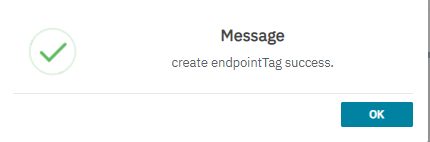
A confirmation message is displayed, indicating endpoint Tags is created successfully.
5. If you click
Submit without entering Tags details, the following notification is displayed below the empty fields on the Add New Tag screen.