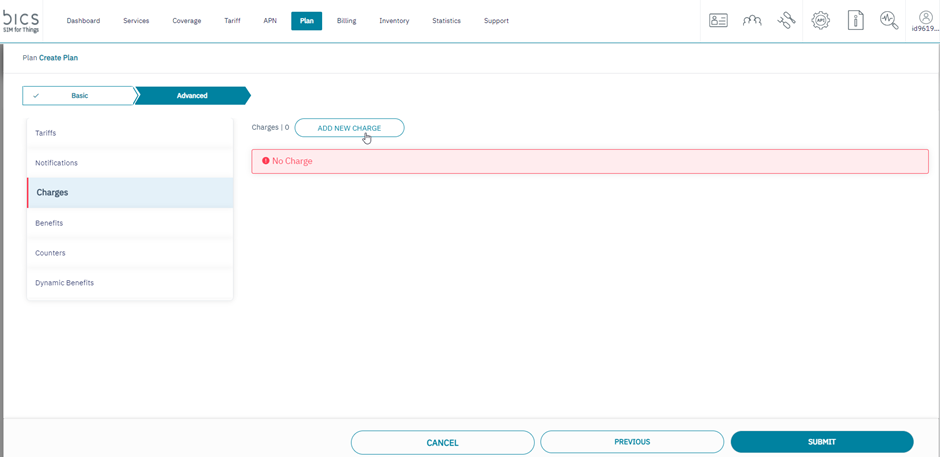
1. After adding the Notifications, click Charges to add charges to the rate plan. Refer to the following screen.
2. Click Add Charges to add charges to the rate plan. Refer to the following screen.
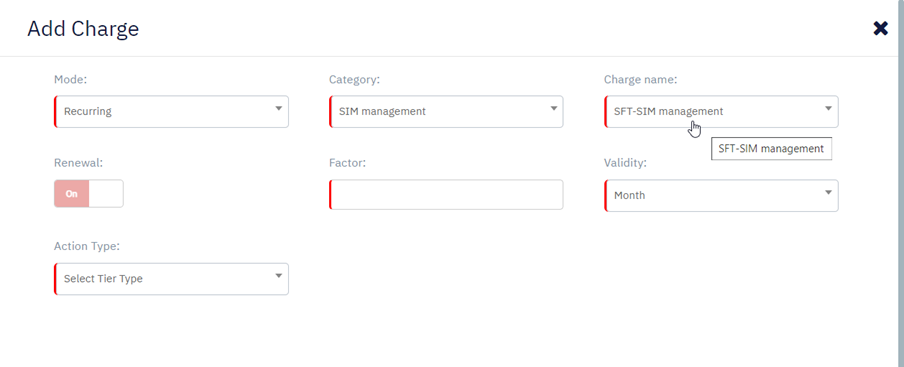
3. After clicking the button, the following screen is displayed.
4. Enter or select the following information in the corresponding fields.
|
Field |
Description |
|
When you select "One Time" as Mode, the following details are displayed |
|
|
Mode |
Select the charge mode form the drop-down list.
|
|
Category |
Select the charge category in the drop-down list.
|
|
Charge name |
Depending on the category selected, the charge name varies.
|
|
Value |
Enter the fixed amount that will be charged |
|
Action type |
By default, this field is not displayed. This field is displayed when you select "SIM activation" as Category.
|
|
When you select "Recurring" as Mode, the following details are displayed |
|
|
Mode |
Select the Charge mode form the drop-down list.
|
|
Category |
Select the charge category form the drop-down.
|
|
Charge name |
Depending on the category selected, the charge name varies
|
|
Value |
By default, this field is not displayed. This field is displayed when you select "Monthly Recurring Charge" as Category or "SIM Management" as category with "Threshold based" as Action type or "Normal" or Feature based SIM management as Action type.
|
|
Threshold |
Enter the threshold amount for the charge |
|
Unit price |
Enter the unit price to charge after the threshold limit is reached |
|
Renewal |
By default, this field is not displayed. This field is displayed when you select "Recurring" as Mode.
|
|
Factor |
This field is displayed when you select "Recurring" as Mode.
|
|
Validity |
This field is displayed when you select "Recurring" as Mode.
|
|
Action Type |
By default, this field is not displayed. This field is displayed when you select "SIM Management" or "Feature based SIM management" as Category.
Note: For feature based SIM management Action Type default selected and gray out. |
|
Action Type (Activation) |
By default, this field is not displayed. This field is displayed when you select "SIM Management" or "Feature based SIM management" as Category and Select the charging type from Action Type.
|
|
Applicable for |
By default, this field is not displayed. This field is displayed when you select "SFT-Feature based SIM management fee" as Charge name.
|
|
Includes |
By default, this field is not displayed. This field is displayed when you select "NB-IoT access or Data access" as Applicable for.
|
|
Number included |
By default, this field is not displayed. This field is displayed when you select "NB-IoT access or Data access" as Applicable for.
|
|
Default price above number included |
By default, this field is not displayed. This field is displayed when you select "NB-IoT access or Data access" as Applicable for.
|
|
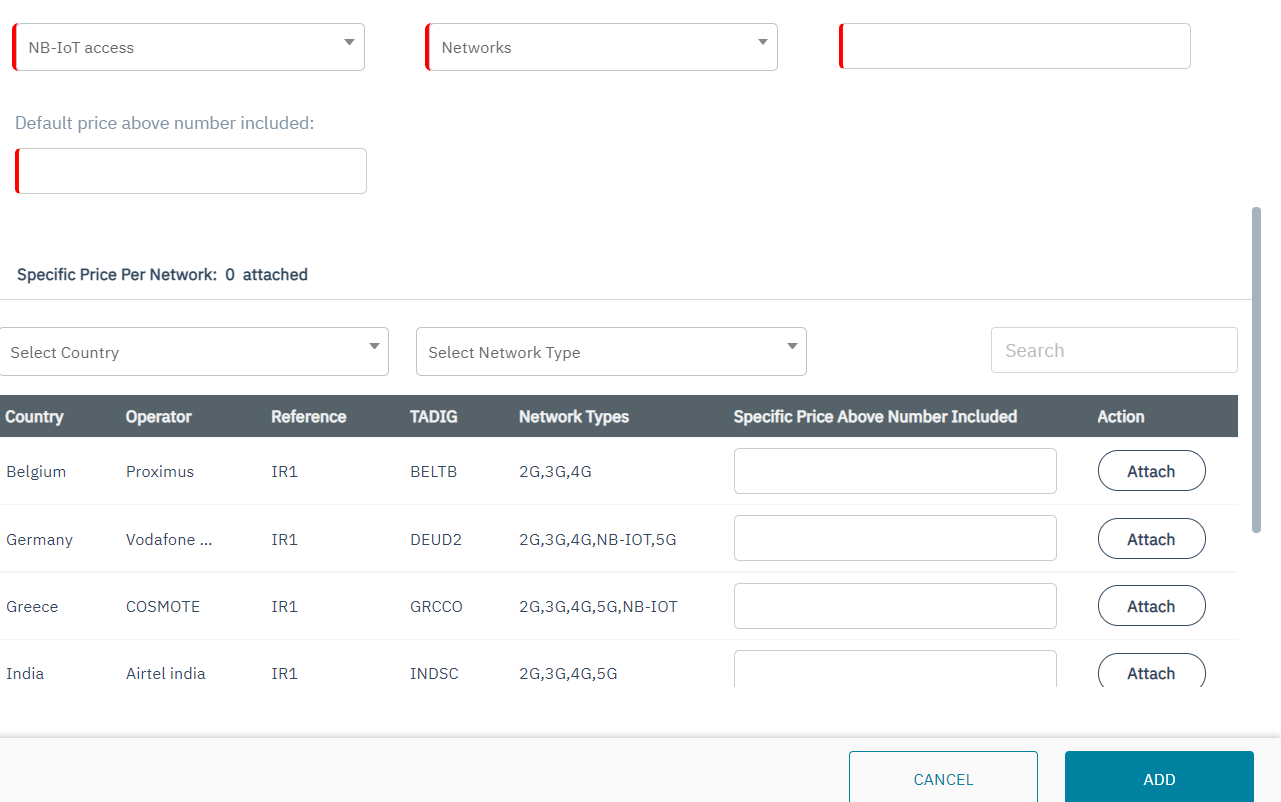
Specific price per network |
By default, this field is not displayed. This field is displayed when you select "NB-IoT access or Data access" as Applicable for. contain one line per network .
|
Tier based per SIM
-
If you select "Tier based per SIM" as Action type, the following screen is displayed.
-
Enter the End range and Amount in the corresponding field.
-
On select of action type as Tier based per SIM action type (activation) field will appear (by default it will be immediate) select the required activation type.
Note: Start range is auto-populated and cannot be modified.
-
Click Add to add additional slab. Refer to the following screen.
Note: Minimum two slabs are mandatory to create Tier based per SIM charging.
-
After clicking the button, slab 2 details are displayed. Refer to the following screen.
-
Enter the End range and Amount in the corresponding field.
Note: Start range for slab 2 is auto-populated based on the end range of the slab 1 and cannot be modified.
-
Click Add to add additional slabs. Refer to the following screen.
-
Click
to modify the slab details.
-
Click
to delete the slab details.
-
After entering the slab details, click ADD to add the charge to the plan. Refer to the following screen.
Tier based per Range
-
If you select "Tier based per Range" as Action type, the following screen is displayed.
-
Enter the End range and Amount in the corresponding field.
Note: Start range is auto-populated and cannot be modified.
-
Click Add to add additional slab. Refer to the following screen.
Note: Minimum two slabs are mandatory to create Tier based per Range charging.
-
After clicking the button, slab 2 details are displayed. Refer to the following screen.
-
Enter the End range and Amount in the corresponding field.
Note: Start range for slab 2 is auto-populated based on the end range of the slab 1.
-
Click Add to add additional slabs. Refer to the following screen.
-
Click
to modify the slab details.
-
Click
to delete the slab details.
-
After entering the slab details, click ADD to add the charge to the plan. Refer to the following screen.
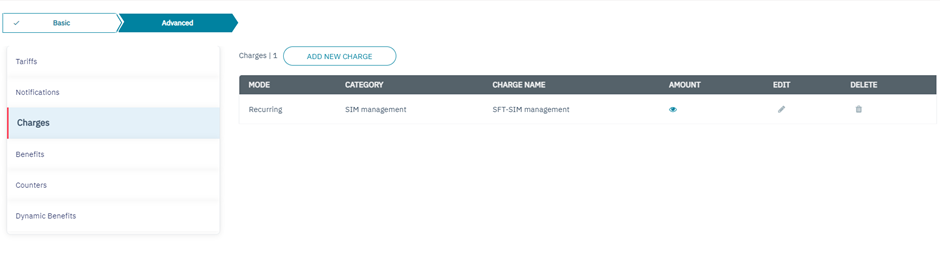
5. The following screen is displayed after charge is added
-
On the Charges screen, click
to edit the Charges details.
-
On the Charges screen, click
to delete the Charge.
-
Click
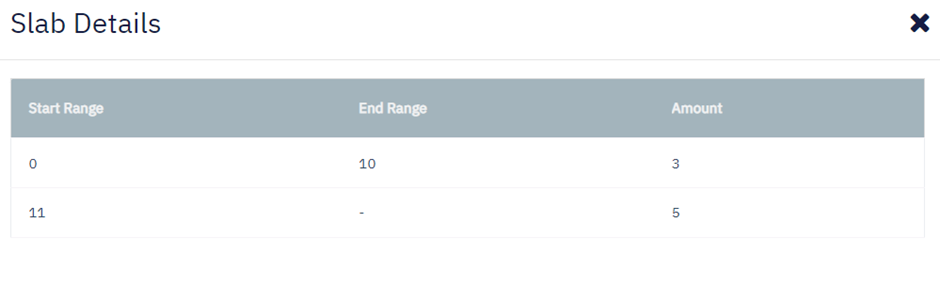
to view the charge details. Refer to the following screen.
-
After clicking the button, the following screen is displayed.
Applicable for
-
If you select "NB-IoT access or Data access" as Applicable for, the following screen is displayed.
Included
-
If you select "Networks" as Included for, the following screen is displayed.
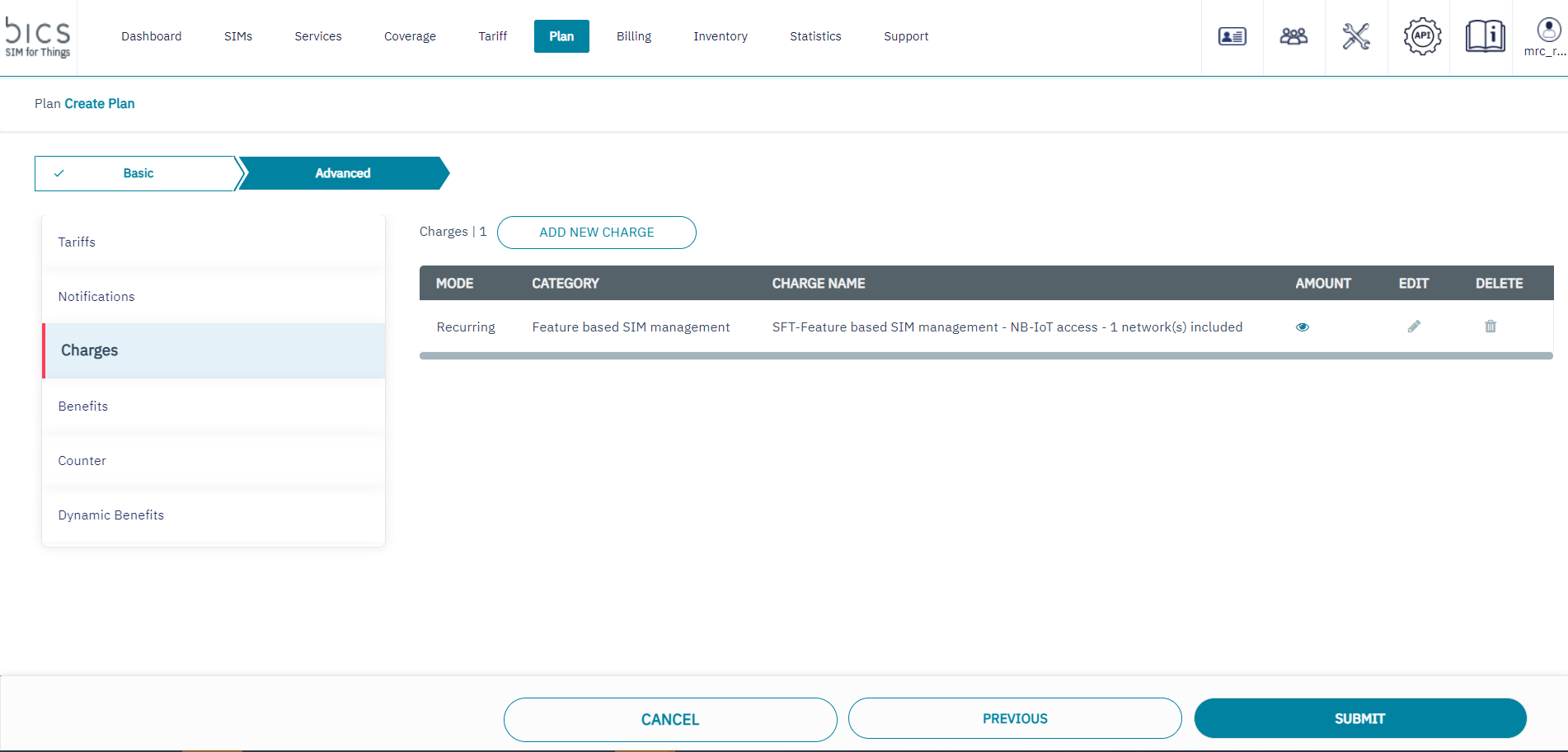
6. The following screen is displayed after service charge is added
-
On The Charge Screen
to edit the Charges detail
-
On the Charge screen ,click
to delete the Charge.
-
Click
to view the charge details. Refer to the following screen.
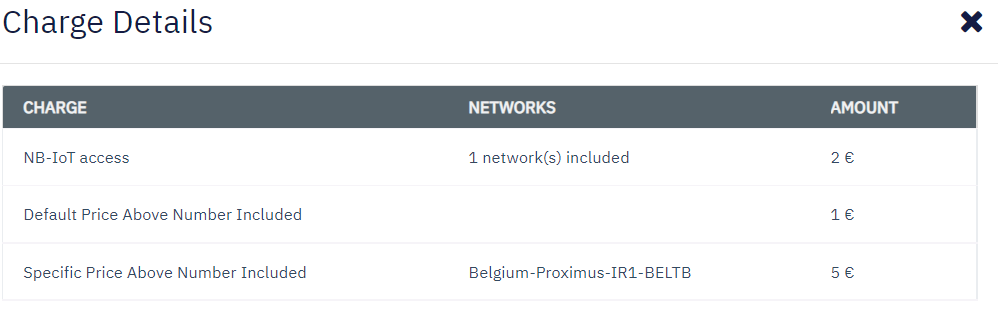
Note: Feature-based SIM management fees are charged on top of SIM management fee.
SFT - SIM Management is a Monthly recurring fee that is collected based on the SIM status. It indicates the charges for SIM management activities. This fee is part of the Charges section in a Plan.
-
Charge name “SFT – SIM Management” is shown when SIM Management is selected as Category.
-
This charge can be deducted in four ways based on Immediate and First Usage.
-
Normal
-
Tier based per SIM
-
Tier based per range
-
Threshold based
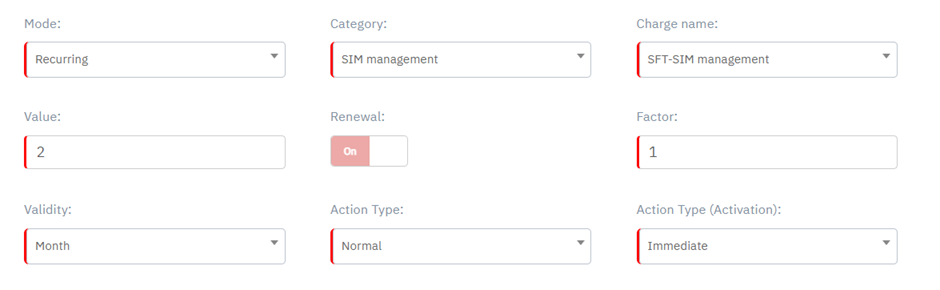
1] Normal.
-
The amount will be deducted in endpoint creation/first usage based on charge and Frequency configuration.
2] Tier based per SIM.
-
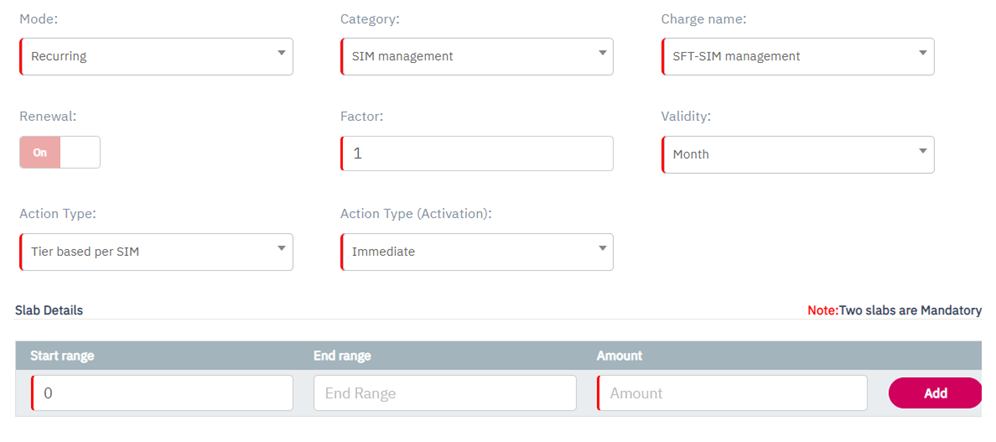
If "Tier based per SIM" is selected as Action type, the following screen is displayed.
-
On select of action type as Tier based per SIM action type (activation) field will appear (by default it will be immediate) select the required activation type.
Enter the End range and Amount can be configured. If the endpoint count match with range, then that amount will be deducted in endpoint creation/first usage time.
-
Note: Start range is auto-populated and cannot be modified.
-
Click Add to add additional slab. Refer to the following screen.
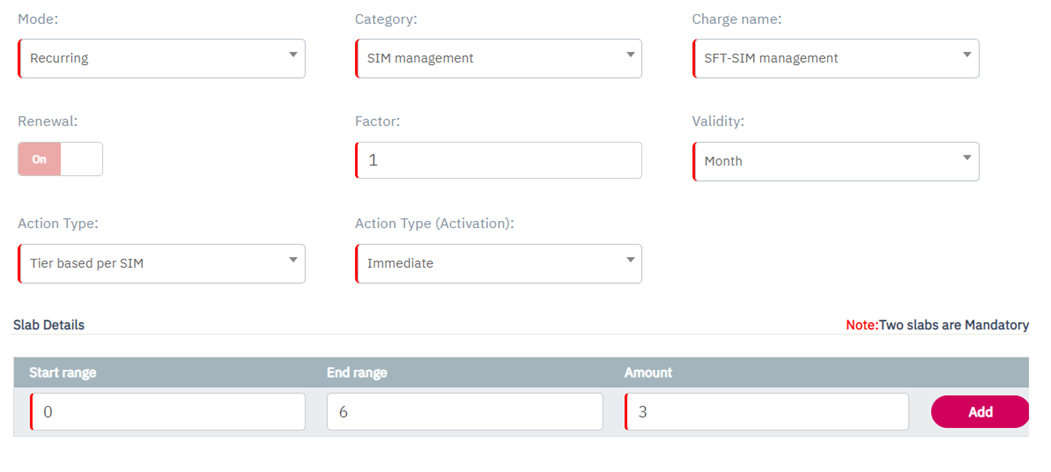
Enter the End range and Amount in the corresponding field.
Note: The start range for slab 2 is auto-populated based on the end range of the slab 1 and cannot be modified.
-
Click Add to add additional slabs. Refer to the following screen.
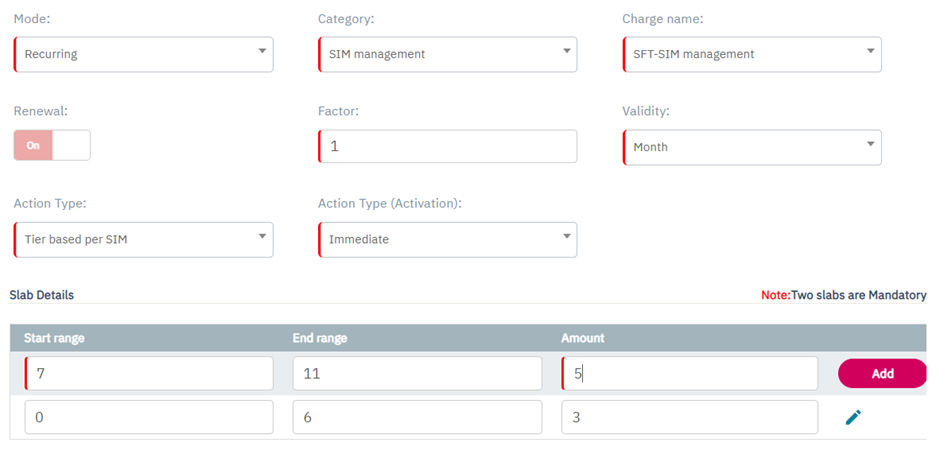
-
After entering the slab details, click ADD to add the charge to the plan. Refer to the following screen.
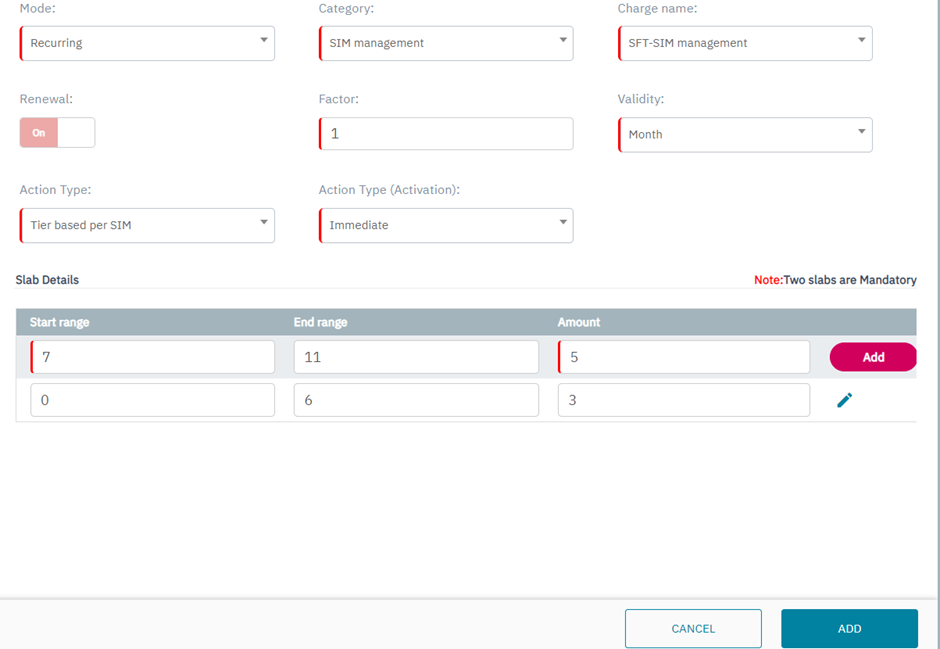
3] Tier based per Range.
If you select "Tier based per Range" as Action type, the following screen is displayed.
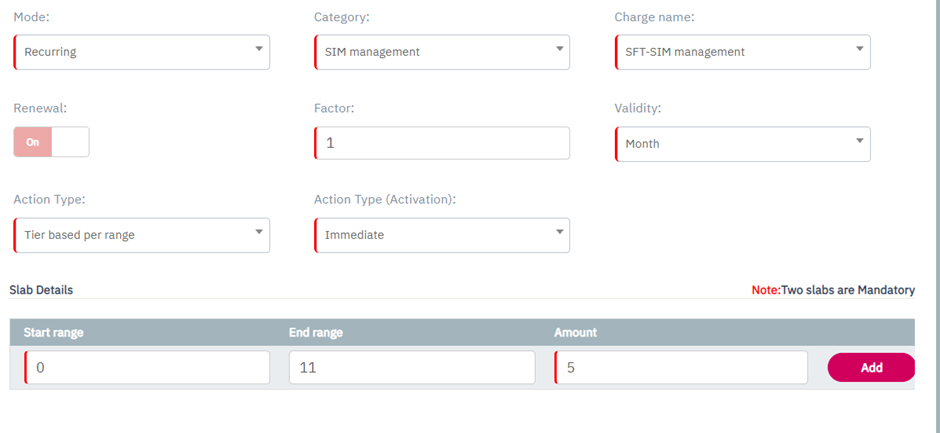
On select of action type as Tier based per range action type (activation) field will appear (by default it will be immediate) select the required activation type.
-
Enter the End range and Amount in the corresponding field.
Note: Start range is auto-populated and cannot be modified.
-
Click Add to add additional slab. Refer to the following screen.
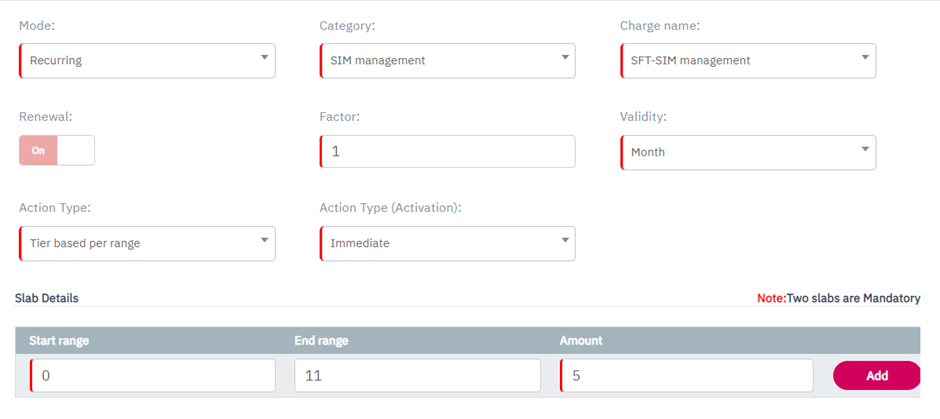
Note: Minimum two slabs are mandatory to create Tier based per Range charging.
-
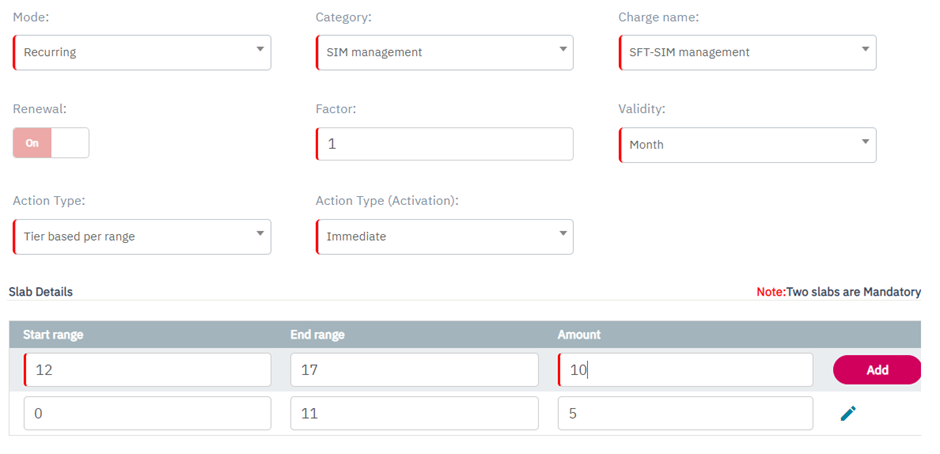
After clicking the button, the slab 2 details are displayed.
Enter the End range and Amount in the corresponding field.
Note: Start range for slab 2 is auto-populated based on the end range of the slab 1.
-
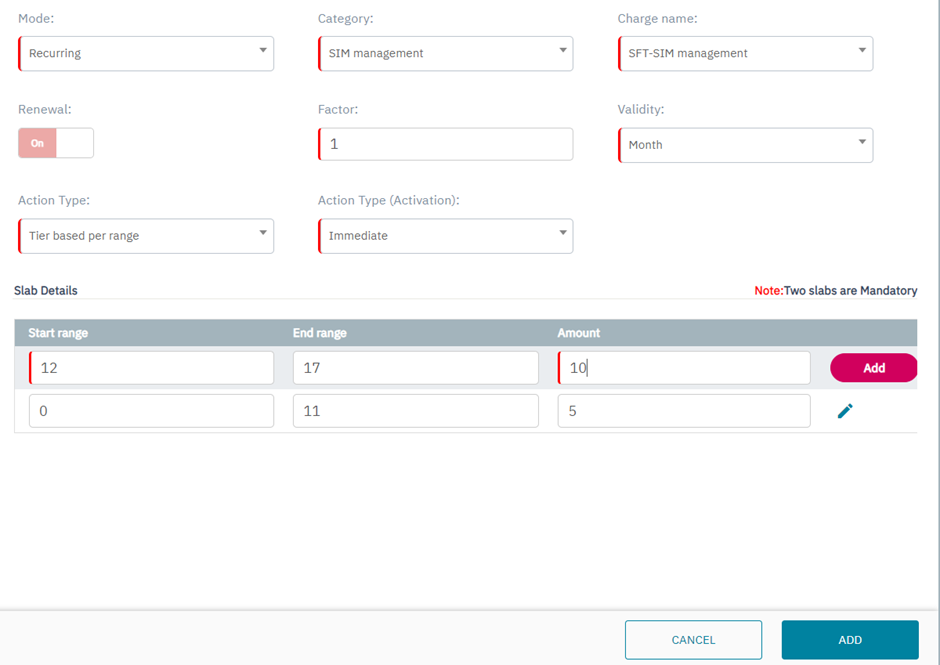
Click Add to add additional slabs. Refer to the following screen.
After entering the slab details, click ADD to add the charge to the plan. Refer to the following screen.
4] Threshold based.
Up to threshold one time the amount will be deducted. Once endpoint count crossed the threshold, then unit price will be deducted in endpoint creation/first usage based on configuration.
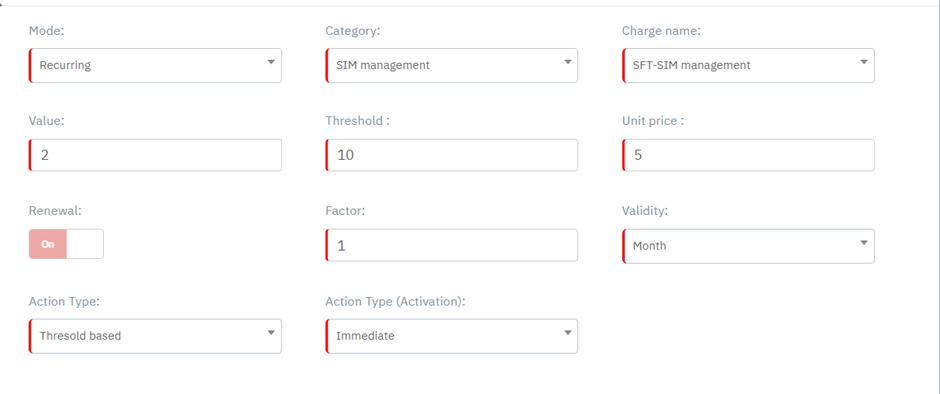

The following screen is displayed after charge is added
After clicking on the (eye) button, the following screen is displayed.